Omnis Technical Note TNSQ0036 Updated September 2021
Connecting Natively to Microsoft SQL Server
for Omnis Studio 10.0 or above
by Gary Ashford, Omnis Engineering
Introduction
The Sybase DAM in Studio 10 has been modified to work with an open-source version of the LIBCT client library, developed by FreeTDS.
Primarily intended for use on the macOS platform, the FreeTDS client library makes connection to Sybase ASE and Sybase ASA servers possible in the absence of Sybase Open Client which is no longer available for macOS.
By exploiting their common heritage, the FreeTDS LIBCT library also makes it possible to connect natively to Microsoft SQLServer; a connection which has previously been possible only using the ODBC or JDBC DAMs.
Note: For Studio 11.2, see also: TNSQ0043
Downloading and compiling the FreeTDS source code (optional)
The FreeTDS project is provided under the GNU LGPL license and as such, may be freely modified and distributed by companies and individuals provided that the license terms are met.
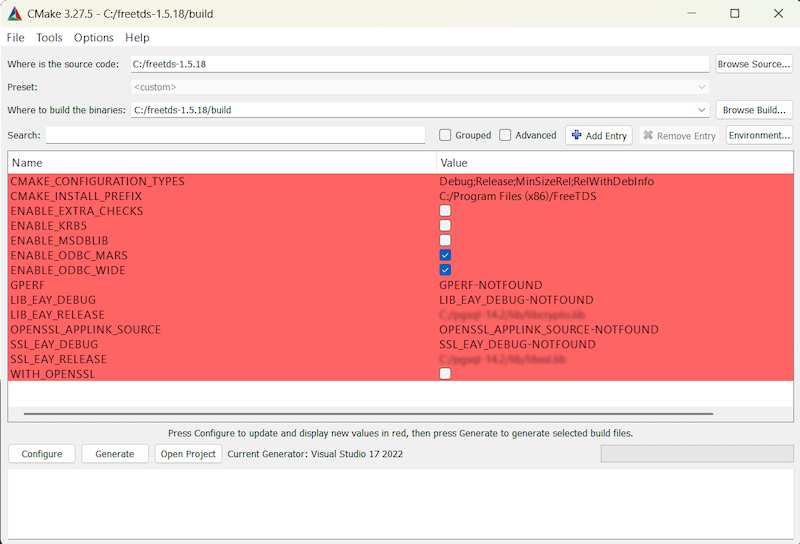
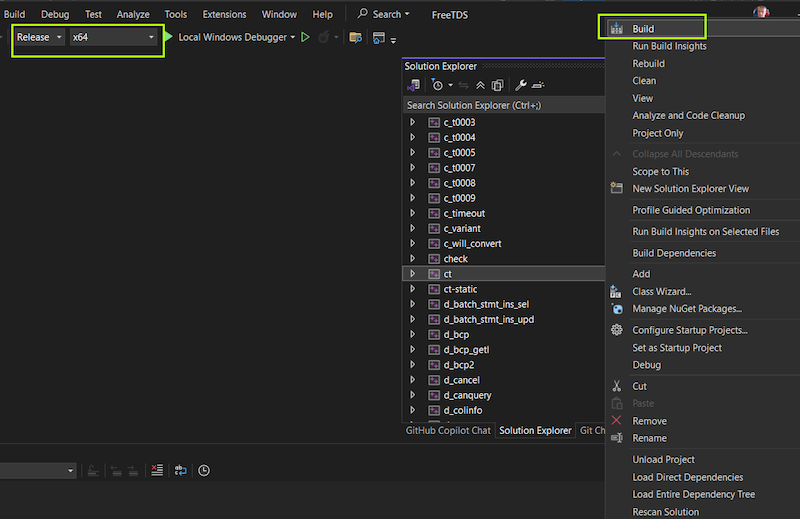
You can download the "latest stable release" directly from www.freetds.org to produce your own libct library (named ct.dll on Windows, libct.dylib on macOS or libct.so on Linux).
Please note that we have made one or two modifications to the default source code in order to resolve some compatibility issues and these are documented in the readme file below.
Show details for
To configure and build the FreeTDS libraries for macOS, please consult the FreeTDS website and the build instructions supplied with the source code. Assuming the .tar file containing the source code has been extracted to your home folder however, you can build the Free TDS components using the following commands:
./configure --without-openssl
make
In this example, the libct library and symlink are output to ~/freetds-1.5.18/src/ctlib/.libs
libct.dylib -> libct.4.dylib
libct.4.dylib (469192 bytes)
Installing the FreeTDS components
Due to code signing restructions on the Mac, libct.x.dylib file and its symlink should be copied into:
Omnis Studio xxxxx.app/Contents/Frameworks
When you re-codesign the Omnis.app and the libct library will be integrated as part of the package.
Using Homebrew
Alternatively, you can use the Homebrew package manger on macOS to install the latest version of libct:
brew install freetds
The installed library is automatically codesigned, so you can link to this from a location on the standard library search path. For example:
cd /usr/local/lib
ln -s /opt/homebrew/Cellar/freetds/1.5.18/lib/libct.4.dylib libct.dylib
Other files required by FreeTDS are:
.freetds.conf file (equivalent to the Sybase interfaces file)
On the Mac, .freetds.conf should be placed inside the /Users/localUser folder. Because .freetds.conf will be a hidden file on the Mac, you may wish to create an additional symlink for this file, linking freetds.conf → .freetds.conf.LIBCT also looks for the freetds.conf file in a file named by the environment variable FREETDSCONF. On Linux, this can also be set/exported inside the omnisX64 batch script. Windows example:
FREETDSCONF=c:\freetds.conf
locales.conf file (equivalent to the Sybase locales.dat file)
On Mac and Linux, locales.conf should be placed inside the /usr/local/etc folder (a location specified by the FreeTDS source code). The Windows LIBCT library also looks for locales.conf in the root of drive C: , i.e. C:\locales.conf.
Setting FREETDSCONF on macOS
Please note that you can set environment variables for each DAM inside the Studio config.json file.
Edit this file (for example; ~/Library/Application Support/Omnis/Omnis Studio 31315/studio/config.json),
locate the "macOS" section and append to the sybasedam.ini entry as follows:
"macOS": {
"allowStopInRuntime": true,
"macOSbuttonNewTextDrawingStyle": true,
"macOStreeOutlineStyle": true,
"menuTrackingSuppressTimers": true,
"monitorDockKeyEvents": true,
"odbcdam.ini": "ODBCINI=/Library/ODBC/odbc.ini",
"oracle8dam.ini": "TNS_ADMIN=/instantclient_12_2, NLS_LANG=AMERICAN_AMERICA.WE8ISO8859P1",
sybasedam.ini": "LANG=en_US, FREETDSCONF=/Users/myUser/freetds.conf",
"stackSize": 1048576,
"useDictation": true,
"useToolbarStyleExpanded": false
}, ...
|
.freetds.conf is optional if you require only default SQL Server options. See below. |

|
locales.conf is optional if you only require the default "en_US" locale. |
Installation Summary
| Windows | macOS | Linux | |
| libct (& symlink) | {Omnis folder}\ct.dll | Omnis.app/.../Frameworks/libct.dylib → libct.4.dylib | {Omnis folder}/libct.so → libct.4.so |
| .freetds.conf (& symlink) - optional | %FREETDSCONF% %APPDATA%\.freetds.conf | ˜/freetds.conf → .freetds.conf | $FREETDSCONF |
| locales.conf - optional | C:\locales.conf | /usr/local/etc/locales.conf | /usr/local/etc/locales.conf |
Default freetds.conf and locales.conf files are supplied with the FreeTDS source bundle, and are also available for download at the end of this technote.
Configuring Data Sources
You can configure one or more data sources by editing the .freetds.conf file. To connect to Microsoft SQL Server, create or adapt a data source that looks similar to:
# SQL Server 12 Example
[ntms2012]
host = 192.168.1.99
port = 1433
tds version = 7.0
|
Other connection attributes may be specified and these are listed in the FreeTDS documentation. If you do not require named data sources and are using default settings for port, etc. it is also possible to logon without a freetds.conf file, using the IP-address as the the logon $hostname instead. |
Configuring the Locale
The default locales.conf file supports 4 locales, although more can be created if required. Their purpose is to associate a language name, character set and datetime format with your client connection(s).
The (modified) LIBCT library uses the LANG environment variable to specify the locale name. On macOS, you can use the Omnis.app/Contents/MacOS/xcomp/ini/sybasedam.ini file to set the value of LANG. (Note that the default SYBASE and SYBASE_OCS entries in this file can be ignored/removed.)
Example sybasedam.ini contents:
LANG=en_US
On Windows, this can be set as a system environment variable. On Linux, it can be set/exported inside the omnisX64 batch script.
Logging on to SQL Server
Once the FreeTDS client library has been installed, your .freetds.conf & locales.conf files have been setup, and your LANG and FREETDSCONF environment variables are set,
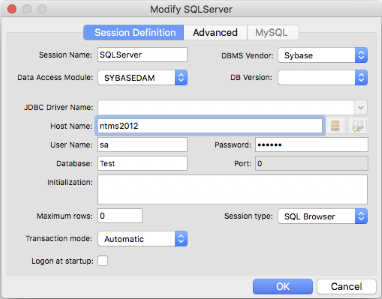
you are ready to open Omnis Studio and connect to SQL Server. Specify the data source name (if you are using .freetds.conf) or the server's IP address as the hostname.
Note that connecting using the system administrator account (sa) avoids potential problems with qualified table names and permissions issues.
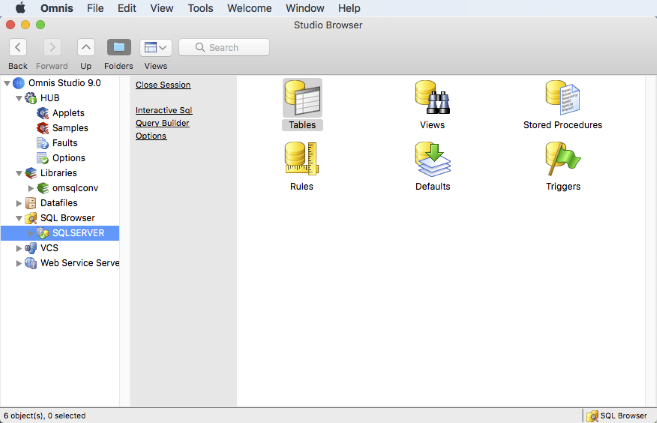
Hint: Checking Options->Include System Objects ensures that you will see tables belonging to all users.
 |
 |
Downloads
| Pre-compiled FreeTDS libct library | Temporarily unavailable | |||
| Sample freetds.conf file | freetds.conf | |||
| Sample locales.conf files | locales.conf | |||
| License and Readme | GNU_LGPL.PDF readme.txt | |||
References
FreeTDS website: www.freetds.org
GNU Lesser General Public License: www.gnu.org
See also
How to create symbolic links on macOS and Linux: Go to page
How to set environment variables on Windows: Go to page



 Please logon or create a free account to download this file.
