Subscription based licensing and activation has been introduced for Omnis Studio 12 (Revision 42400 onwards) which is described here.
This section provides a general introduction to understanding the licensing and activation processes for Omnis Studio 12 or above – comprehending the various licensing models and activation procedures is crucial for a smooth development and deployment experience.
To ensure you can fully leverage the capabilities of Omnis Studio, it's important to correctly license your development environment and any deployed applications. This section covers the concepts of Omnis Studio licenses, the steps involved in activating your software, and common considerations for developers regarding different license types.
When you first start Omnis Studio
If you downloaded Omnis Studio from our website without purchasing a license, it can be started in Trial mode, which means you can use the full capabilities of Omnis Studio for up to 90 days, free of charge. If you wish to use Omnis Studio beyond that point you need to purchase and activate a full software development license.
Alternatively, if you purchased Omnis Studio online or from one of our sales offices or distributors, you will need to activate your software license when you first start Omnis Studio.
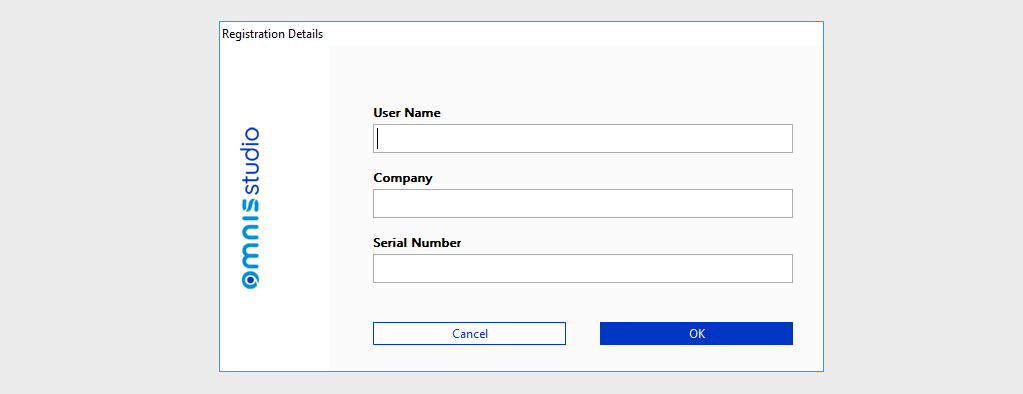
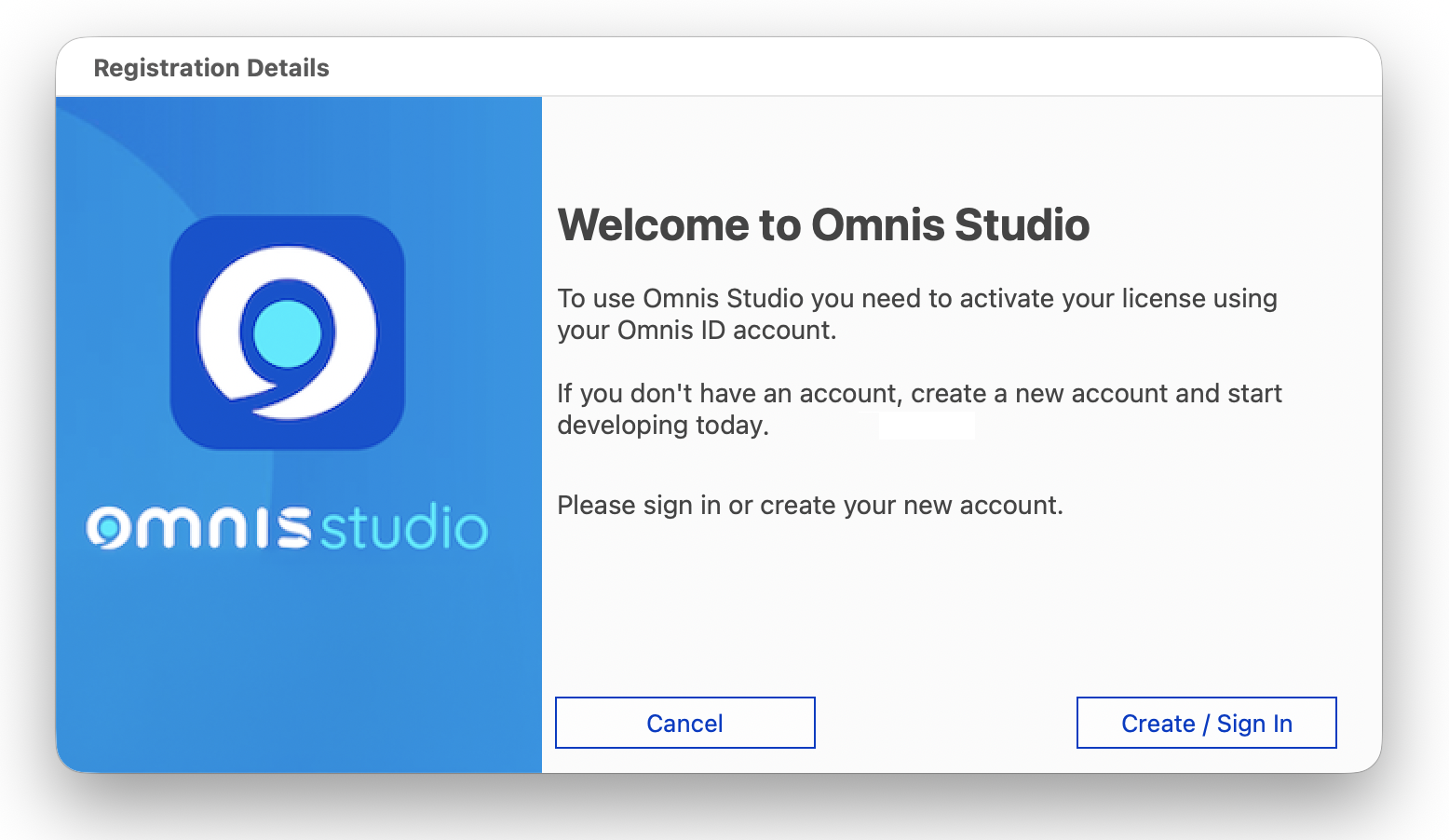
In both these cases, when you first start Omnis Studio you will see the Registration screen. To use Omnis Studio you need to activate your software license using an Omnis ID. If you don’t have an Omnis ID login you need to create one.
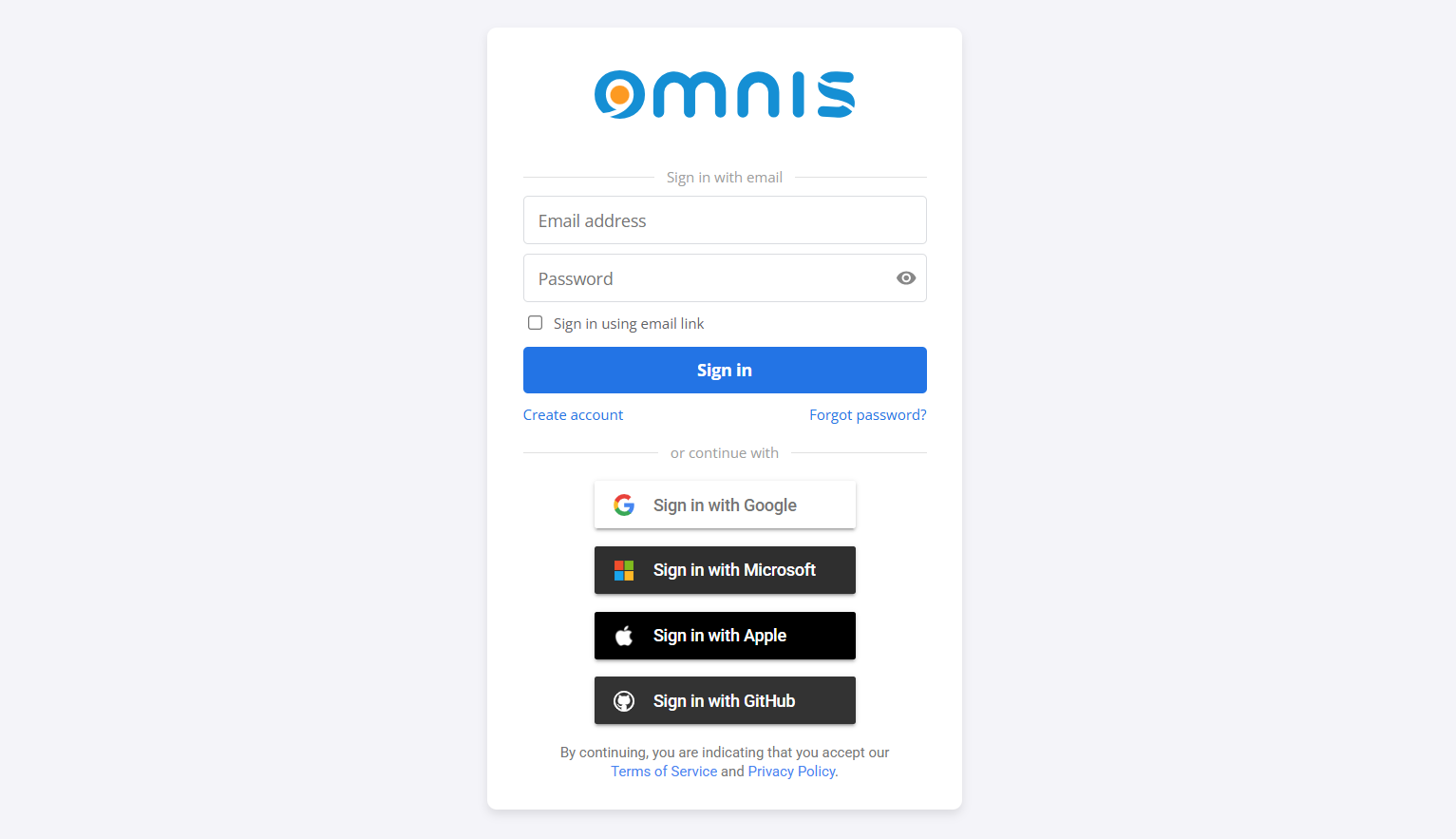
When you click the Create / Sign-in button on the Registration screen you will be transferred to a web browser tab to login with your Omnis ID, or create a new account if this is the first time you've used Omnis Studio.
Note: You must be online and connected to the internet to Activate your Omnis Studio license. If access to the Omnis Licensing server is blocked for some reason, the activation process will fail. You may need to add 'sls.omnis.net' to your own or your company's network access whitlelist to activate Omnis Studio.
To create an Omnis ID, you can use your own email address and password, or you can select Sign in using email link to sign in securely without a password. Alternatively, you can use an existing SSO (Single Sign-On) from one of the listed providers, such as Google, Microsoft or Apple.
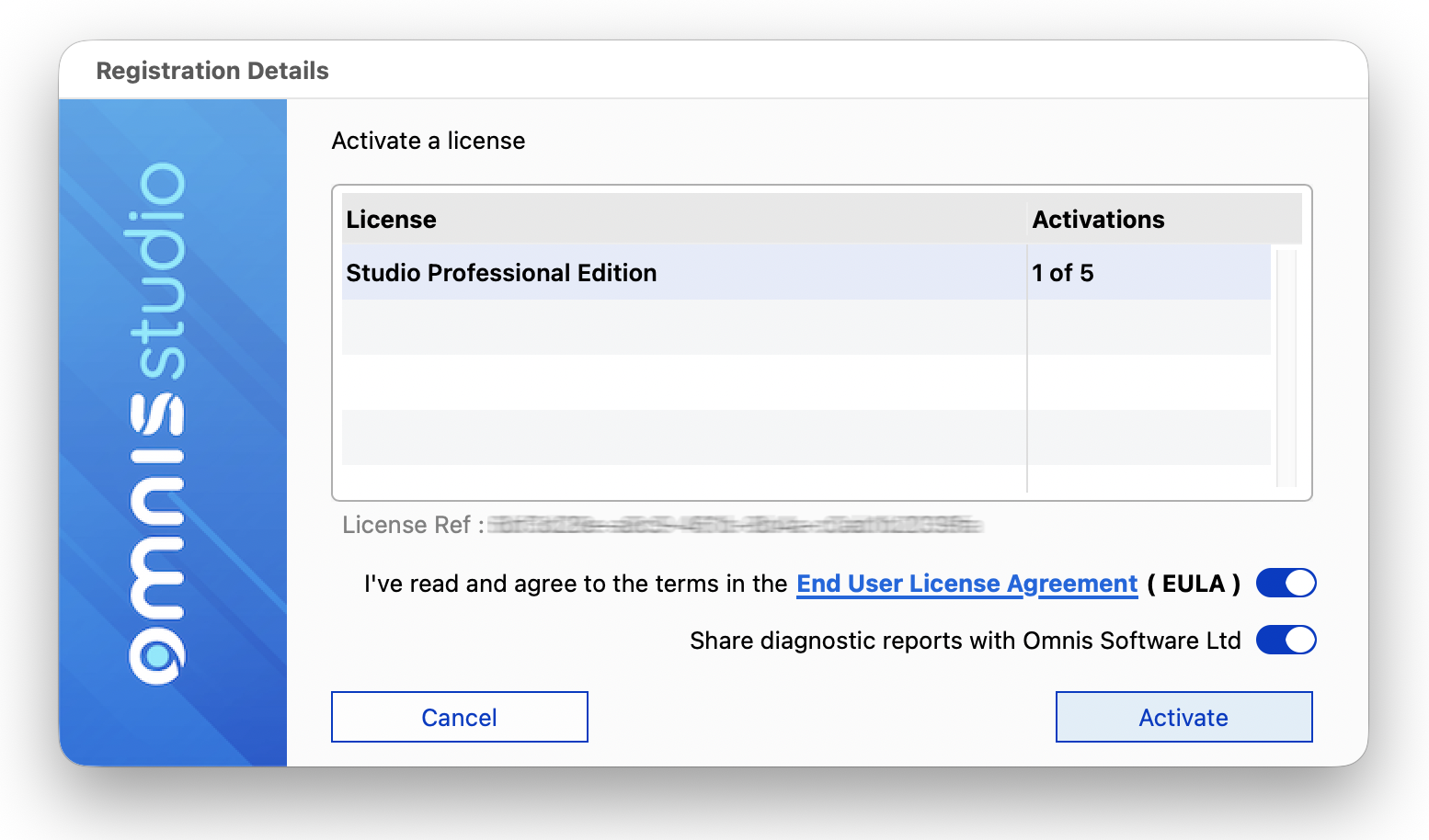
Once you have signed in with your Omnis ID, the web browser tab will close and you need to switch back to the Registration screen in Omnis Studio, which will show what licenses are available to you – if you are a new user and have purchased a license there will be one Studio Pro Edition license, otherwise you can start using Omnis Studio for free by selecting the Trial edition (free for 90 days) or Community edition (free indefinitely) shown in the Registration dialog. The following shows a full Studio Pro Edition license:
Before you can activate a license you must read and agree to the terms and conditions in the Omnis Software End User License Agreement (EULA) which is available online for you to read.
If you are using the Community edition you will also be asked to select your country – this is simply so we know which sales or support office should handle any questions you may have.
So to activate your license, select the Studio Pro Edition license in the list (or the Trial or Community edition), read and check the EULA option, and click on Activate or Start.
After you activate your license, you will be taken straight to the Studio Browser in the Omnis Studio development environment, ready to create your first project library or open an existing library.
License Types
Licenses for Omnis Studio are available for developing desktop, web and mobile applications, and for deploying those applications. The following licenses are available:
Studio Professional Edition
A Studio Professional Edition license allows a developer to use Omnis Studio to create and build desktop, web and mobile applications. This includes access to the full development environment and its capabilities, including modules that give you access to all leading databases. Your Studio Pro Edition license also includes activations to test your application in a Desktop User and App Server environment.
Trial Edition
The Studio Professional Edition (Trial) license allows you to use the full Studio development environment without restriction for 90 days, free of charge. If you are happy with your trial you can upgrade your license to a full Studio Professional Edition.
The Studio Community Edition PostgreSQL license allows you to use the Omnis Studio development environment with a connection to a PostgreSQL database. The Community edition is free to use for the lifetime of your app with only a restriction on the number of end users. If you want the full capabilities of Omnis Studio you can upgrade your license to a full Studio Professional Edition.
Studio Desktop User
A Studio Desktop User license allows end users to run Omnis Studio applications on their desktop machines, either on Windows or macOS. These licenses are needed for deploying applications to individual end users (your clients or customers), enabling them to interact with the software you've developed without needing a full development environment.
You can purchase Desktop User licenses for one user, for deploying your desktop app to single users in different organizations, or for multiple users, for deploying a desktop app to different individuals within a single organization.
Note to existing users: these were called Client access or Runtime licenses in previous versions, so the Desktop license may be referred to elsewhere as a Runtime.
Studio App Server
A Web App Server license allows multiple end users to run Omnis Studio web and mobile applications simultaneously through a web browser. These licenses are needed for deploying applications that need to be accessed by many users over a network, providing scalability and centralized management for your web-based Omnis Studio solutions.
The App Server can also be licensed for the following deployments:
The Mobile App Server is for running standalone mobile applications that use the JavaScript wrappers on Android and iOS devices.
The JS App Server is for running applications in the JavaScript Client, using Remote Forms only – no fat client window classes can be opened on the JS App Server (except for the Monitor window in the servermgmt library), the Remote Debugger window, and the SyncServer window).
Managing your Licenses
You can view and manage your Omnis Studio license(s) in the Omnis Dashboard at: dashboard.omnis.net which you can access using your Omnis ID.
The Omnis Dashboard allows you to activate or deactivate your license(s), or manage any other Omnis Studio licenses you have purchased, such as Desktop or App Server licenses, which you’ll need to deploy your application on desktops or online. See License Types for more details.
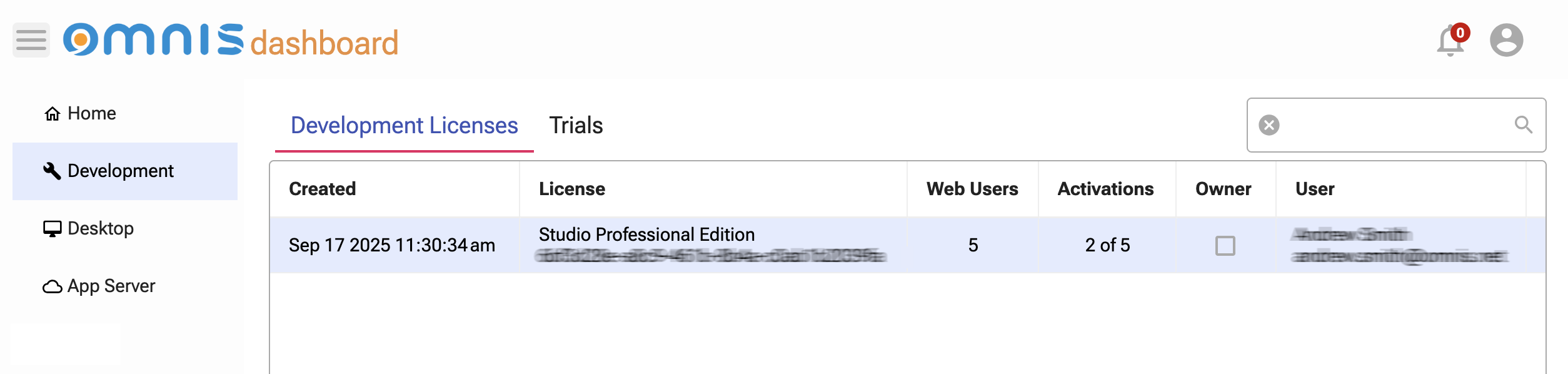
Having logged into the Omnis Dashboard using your Omnis ID, you will see your Studio Pro Edition license listed on the Development > Development Licenses tab, or a trial license will be listed under the Trials tab – Desktop User and App Server licenses are also listed, if you have any.
From the main view under the Development Licenses tab, you can select a license and do one of the following:
- View: your development licenses, the no. of web users and activations allowed by the license.
- Share: if you have purchased multiple developer licenses you can share a license with other developers in your team – see Sharing a development license
- Deactivate or Download: you can double-click on a license to see more details about the license, and from there you can deactivate the license, or download it as a file (called license.lic).
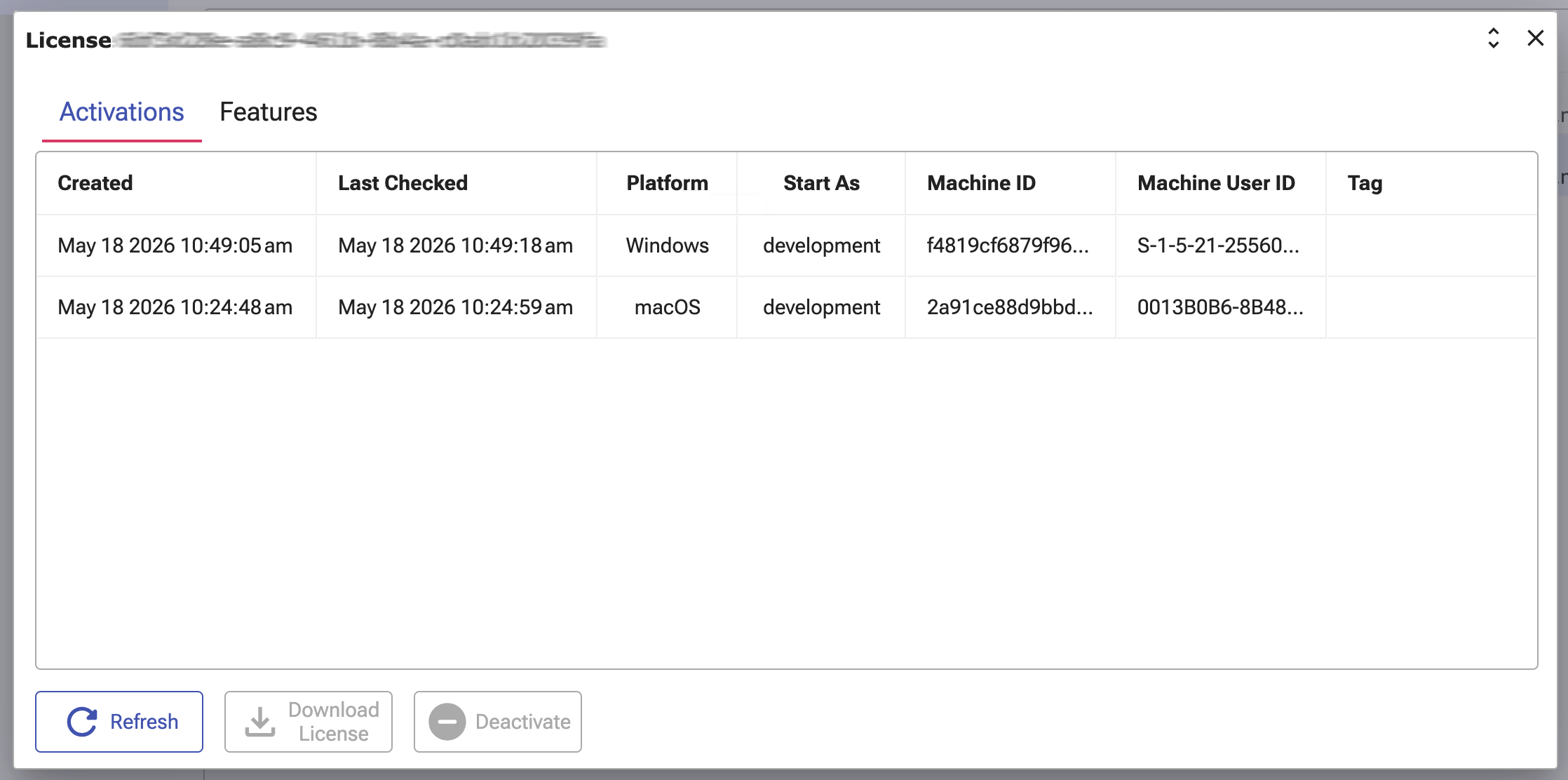
You can view a license in the dashboard by double-clicking on it.
In the Activation window you will see the current activations for that license under the Activations tab, including the Platform, Machine ID, and Machine User ID for each activation – you can activate your development license on up to 5 computers, on either Windows or macOS, allowing you to develop on multiple platforms. The Tag is a name or label (up to 255 chars) you can assign to the license using the $updateActivationTag() method; see the Omnis Licensing API.
The Features tab shows what capabilities of Omnis Studio you are allowed access to under the terms of that license, for example, which Data Access Modules (DAMs) you can use, to access various server databases, or whether or not you can use the Omnis VCS to manage your project libraries.
Viewing your license in Omnis Studio
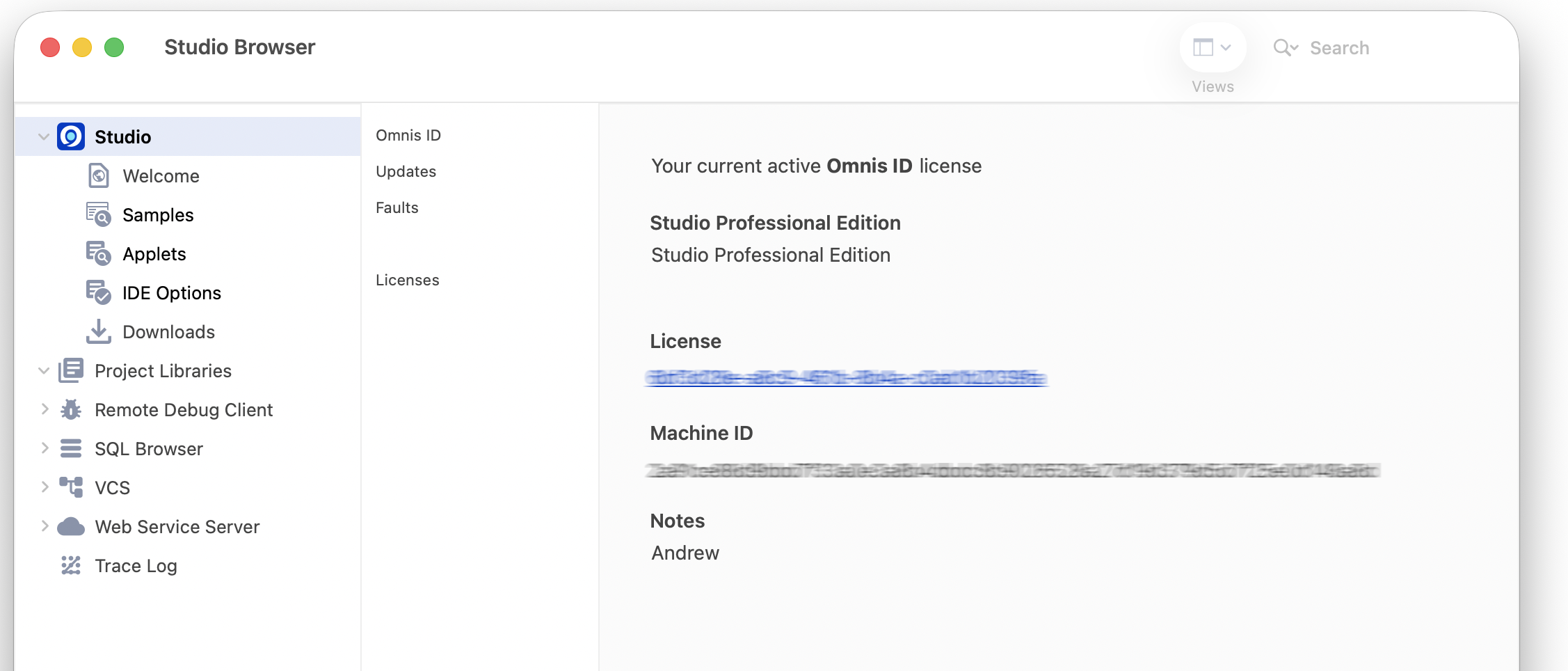
You can view your current license in Omnis Studio in the Studio node in the Studio Browser under the Omnis ID option.
You can click on the license under the Studio node to view and manage it in the dashboard. You can also see if a new revision is available under the Updates option, including information about enhancements and fixes in the revision.
Alternatively, you can view your license from the About Omnis screen using the Help > About Omnis Studio menu option.
Deactivating a license
Selecting a license in the dashboard and deactivating it allows you to free up that activation and transfer it to another development computer, or upgrade your current revision. For example, if you download a new revision of Omnis Studio, you can deactivate your current revision in the dashboard (on Windows or macOS), prior to installing and activating the new revision.
License file
Licenses are managed and activated online in the Omnis dashboard, but they are stored as a physical file (license.lic) in the license folder under the main Omnis Studio folder – this is located in your App Data folder on Windows or Application Support folder on macOS.
Activation Allowance
A Studio Professional Edition license allows a single developer to use Omnis Studio on different platforms or for testing an application in different environments. A Pro Edition license allows 5 activations. This means a single developer can activate and use Omnis Studio:
- on 3 different computers or platforms, for example, on Work and Home computers, using any combination of platforms including Windows or macOS
- and 2 activations for testing an application either in a desktop environment using the Studio Desktop User software, or on the web using the Studio Web App Server which is available for Windows, macOS, and Linux Headless Server. Desktop and Server editions are available to download from the Omnis website. You'll need to create an Activation ticket for testing your app on Desktop or App Server; see Activation Tickets.
Starting a Pro Edition as Desktop or Server
You can use the Professional Edition (development) software to test your app in the Desktop (runtime) or Server environment by changing the "startAs" item in the "defaults" group in the Omnis configuration file (config.json).
The "startAs" item must be present in config.json and can be set to "development", "runtime" (desktop), or "server" to run the Pro Edition software in the specified mode; the value defaults to "development" in the Pro Edition.
Your license must permit the requested mode, that is, the Pro Edition license allows Omnis Studio to run in Desktop or Server mode; however, a Desktop license cannot be used to start in Development mode.
When Omnis Studio starts up, in whichever mode, either Pro, Desktop, or Server, it will consume one activation allowed in the license.
When you have finished testing and are ready to deploy your application, you will need to purchase a full Desktop or App Server deployment license and use the relevant Desktop or Server software.
Sharing a License
If you work in a company or organization with a team of software developers, then each developer needs their own Studio Pro Edition Development license assigned to their own individual Omnis ID.
The administrator (or business owner) for the licenses can share each of these licenses with individual developers in the team by creating an invite for each team member – invites expire after 30 days, after which the license cannot be activated and the invite will need to be re-issued by the license owner.
To share a Development license:
- Go to the Development branch in the Licensing dashboard
- Select the license in the dashboard, click on the Share button and select Create Invite from the menu
- Click on the Create Invite on clipboard button to generate the link (url) – this is copied to the clipboard automatically
- Forward the link onto your team member by secure Email or DM
When the developer / team member receives and clicks on the link, they will need to:
- Create their own Omnis ID user account, using their own email address, and Accept the license invitation when prompted
- Then they need to download and install the Development software.
- When they start Omnis Studio, they need to sign-in using their own Omnis ID and then activate the license on the registration screen.
If an employee leaves the company or no longer needs an Omnis Studio license, it can be Unshared by the license admin or owner and re-shared with another developer.
Note: it is possible to Share a Desktop or App Server license but this should only be used for internal or testing purposes. To provide licenses to end user, when deploying your app, you should create an Activation Ticket, which is described in the next section.
Deploying your application
When you are ready to deploy your application you will need to purchase a Desktop or App Server deployment license, as follows:
To deploy your application on desktop computers you will need to purchase a number of Desktop User licenses, one for every end user using your application
To deploy a Web or Mobile application, you will need a Web App Server, Mobile App Server or JS App Server license, allowing one activation for every web or mobile client that will access your application.
Your Development license allows you to test your application in a Desktop or Server environment, which you can download from the Omnis Studio website, alongside the development software. In this case, testing on Desktop or Server takes one of your allowed activations within your development license; see below about creating an Activation ticket for testing.
When you deploy your application to end users in a live Desktop or Server environment, you need to purchase full Desktop or Server licenses. To add these licenses to your account, or to change or upgrade your current deployment licenses in any way, you need to contact your local sales team.
Activation Tickets
When you are ready to deploy an application to Desktops or the Omnis App Server, you need to create an Activation Ticket for a license and embed it into the license folder of the Studio Desktop or App Server software. In this case, your application will start up and Omnis Studio will not require activation by the end user – the activation is performed automatically in the background over the internet via the activation ticket.
To create an Activation Ticket for a Desktop or Server license:
- Open the Licensing dashboard and go the Desktop or Server branch in the main menu
- Select the appropriate Desktops or Server license, click on the Activation Ticket button, and select the Create Ticket option
- Click on Create and Download to download the ticket
- Place the ticket file in the license folder in the Omnis Studio Desktop or App Server installation; this will be in the firstruninstall folder under Windows for new installations of the Desktop or App Server
Note: when deploying a Desktop app to multiple users, using a Desktop multi-user license, you only need to create one Activation ticket for that license – in this case, multiple end users are using the same license, but each single user consumes an activation within the activation allowance for the license.
Deleting a ticket
Once an activation ticket has been created, you can delete (revoke) the ticket by selecting the license in the dashboard, clicking the Activation Ticket button and selecting the Delete Ticket option.
Suspending a ticket
The Suspend Ticket option means any new installations using that ticket will fail to activate. An existing installation will continue to work because a license file has already been generated from the ticket and the ticket in the tree is therefore effectively redundant.
Activation ticket for testing
Creating an Activation ticket for testing your app in the Desktop or App Server environment is the same as the above except that you need to select your Studio Pro edition license under the Development node and use the Activation Ticket button – your Pro edition license allows 1 activation per Desktop or App Server.
Releasing activations automatically
When using the Desktop edition software to run your application, you can automatically deactivate a license when Omnis Studio quits, thereby releasing or freeing up an activation from the allowance in the Desktop license.
To do this, you can set the "autoRelease" item in the "license" section of the Omnis configuration file (config.json) to true (it is false by default). When set to true, an attempt is made to deactivate the license automatically when the application quits.
Using "autoRelease" only makes sense when using activation tickets with Desktop licenses, since every time the end user starts your application, the license will be re-activated by the Activation ticket.
Offline Activation
Some end users operate in high-security or restricted networks (e.g. government, military, research labs) where internet access is deliberately blocked. Offline Activation allows them to activate and use an Omnis Studio application without compromising security.
Offline activation is available for Desktop User and App Server licenses only, not Professional Edition (developer) licenses.
To perform Offline activation for a Desktop User or App Server license you first have to generate a machine.payload file which is done by starting up and closing the Desktop or App Server software; you can ignore the messages about the software not being licensed. The payload file is created and placed in the license folder in your Omnis installation, which is in the App Data folder on Windows or Application Support folder on macOS.
Once you have generated the machine.payload file:
- Go to the license folder in your Omnis Studio installation
- Open the machine.payload file and copy its contents to the clipboard, or copy the file if you need to do the activation on a different machine, i.e. one that is connected to the internet
- Go to the Omnis dashboard (you must be online), select the Desktop or App Server license you want to activate, and click on the Offline Activation button
- Paste in the offline activation payload that is on the clipboard (or in the file you copied) and click the Activate and Download button
- Navigate to the Downloads folder which will contain the license.lic file
- The license.lic file can then be placed in the license folder of the end user’s copy of Omnis Studio Desktop User or App Server software which sits on the computer that does not have internet access
The license.lic file that you download is valid for 28 days, so if the file has expired you need to repeat the whole Offline Activation process again to download a new license file.
Error Messages
Omnis Studio checks the current license on startup and if there is an error an OK message may be displayed. Some licensing errors are reported to the Trace Log.
You can prevent OK messages with errors from being displayed by setting the “silenceErrors” item in the “license” section of the Omnis Configuration file (config.json) to True (defaults is false). In this case, Omnis Studio will not show OK Messages with errors from the licensing system when Omnis starts up.
Omnis Licensing API
Licensing and Activation is managed in Omnis Studio by the Licensing Library which you can configure or interact with to enhance your Omnis applications using the Licensing API.
The Licensing API gives you control over some aspects of license management directly within your applications. This access gives you the ability to read specific license features, for example, to tailor the behavior in your application, and to programmatically manage activation state. By interfacing with the API, you can create more flexible, feature-aware, and secure applications that respond dynamically to the end user's licensing entitlements.
The Omnis Licensing Library offers an API object obtainable using the $getapiobject() method, using the command:
Do $modes.$getapiobject('license') Returns lAPIObj
API Methods
The API object returned offers the following API methods.
$deactivateAndQuit()
The $deactivateAndQuit() method will attempt to deactivate the current license activation and then forcefully quit Omnis.
If communication with the licensing server fails, the method will instead return a character variable containing the error message. In this event, it is your responsibility to ensure the application exits, e.g. by calling Quit Omnis.
$getFeature()
$getFeature(pFeatureName) where pFeatureName is a character parameter.
The $getFeature() method reads the license and returns the pFeatureName feature, if available. The data type of the returned pFeatureName will match the feature type, so if a feature is character based, it will be returned as character, a boolean feature will be returned into a boolean, and an integer feature will be returned into an integer variable.
For example, the following code will open a remote form if the app is running in the development version of Omnis.
If lAPIObj.$getFeature('development')
  Do $remoteforms.jsApp.$open()
End If
A list of license features can be viewed in the Omnis Licensing dashboard (you will need your Omnis ID to access this). Within the dashboard, double-click on a license to view the Activations and Features of the license, and select the Features tab. The named features are listed in the Code column, and include items such as ‘development’, ‘server’, and ‘dam…’ which are the Data Access Modules (DAMs) supported in Omnis Studio.
$isTrialFeature()
$isTrialFeature(pFeatureName) where pFeatureName is a character parameter.
The $isTrialFeature() method returns kTrue if the pFeatureName is a trial feature. If pFeatureName is not a Trial feature or cannot be found in the license, it will return kFalse
See $getFeature for information on feature names.
$isTrialFeatureExpired()
$isTrialFeatureExpired(pFeatureName) where pFeatureName is a character parameter.
The $isTrialFeatureExpired() method returns kTrue if the pFeatureName has expired, otherwise it returns kFalse. Note this does not do the extra check of ensuring pFeatureName is a trial feature, it assumes you have checked the pFeatureName is a trial feature beforehand.
See $getFeature for information on feature names.
$getWebServerUsers()
The $getWebServerUsers() method returns an integer for the ws_users feature, which is the number of web users your license allows.
$getDataFileUsers()
The $getDataFileUsers() method returns an integer for the df_users feature, which is the number of datafile users your license allows.
$isTrialLicense()
The $isTrialLicense() method returns kTrue if the license is a trial, otherwise it returns kFalse.
$updateActivationTag()
$updateActivationTag(pTag) where pTag is a character parameter limited to 255 characters.
The $updateActivationTag() method attempts to set a tag on the activation. Returns #NULL if it succeeds, otherwise a character variable containing the error message.
$refreshLicense()
The $refreshLicense() method forces the currently running Omnis Studio to ask the license system for a refreshed version of the license. This enables you to access any features that have been added to a license, for example, without having to restart Omnis Studio.
$getLicenseReference
The $getLicenseReference() method returns the license reference (licref) of the current license, or an empty string if none is available.
$getActivationReference
The $getActivationReference() method returns the activation reference (actref) of the current license, or an empty string if none is available.
Note: the methods $getCurrentLicense, $getAvailableLicenses, $forceLogin, $createFreeLicense, and $switchToLicense are for internal use only and cannot be used in your custom applications.